IITGN Q-Sim: A Quantum Circuit Simulator
IITGN Q-Sim is an open-source quantum circuit simulator developed by the Quantum Engineering and Computing Group at IIT Gandhinagar. It's built as a powerful extension of the original Quirk platform to enhance the quantum software development experience for our students and researchers.
The Q-Sim tool adds more functionalities to the base quantum circuit simulator. It is free to use and modify for academic purposes. However, please add a reference in case of any publication. Q-Sim is also embedded in the IITGN Quantum Development Extension for VS Code, available for download.
Simulator Features
Right click menu
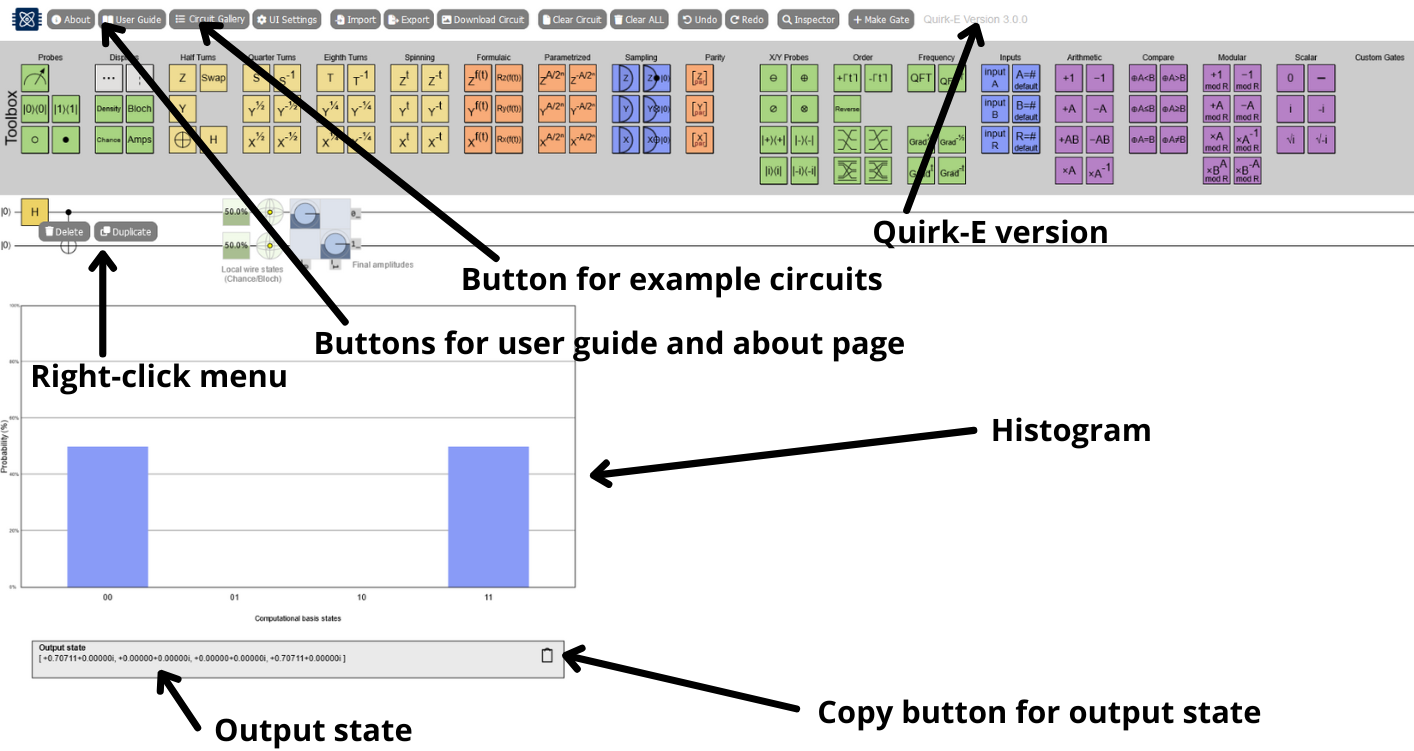
By right clicking a gate on a circuit, you will open a context menu. In that menu, you have two options: duplicate gate and delete gate. When you press the Duplicate button, same gate appears next to the current gate. When you press Delete button, the gate is deleted from the circuit.
Probability distribution histogram
Below the circuit, there is a probability distribution histogram. The histogram shows the computational basis states, the probability for each possible state. It is updated in real time.
Output state
Below the histogram, a text box for output state is available. It shows the complete output state as an array. In the box top right corner there an icon button for copying the output state. The output state is copied in the clipboard in the same format as it is shown in the text box.
UI customization
For UI customization, light and dark modes are available. The dark mode is grey and muted, being comfortable and less straining for the eyes to look at. The light mode is classic and bright. This UI mode can be changed in the UI Settings menu, using the sun and moon icon buttons. The UI is updated as the icons are clicked.
In the same UI Settings menu, there are UI coloring options available. Three coloring modes are implemented: multi-colored UI, yellow UI and black and white UI. In multi-colored UI, multiple colors are used and gates are colored based on groups. In yellow UI, all the gates and the histogram bars are yellow. In black and white UI, only greyscale is used. Overall, there are six different UI options: dark and multi-colored, dark and yellow-colored, dark and greyscale, light and multi-colored, light and yellow-colored, light and greyscale.
Other UI improvements include an enhanced sans-serif font, updated button designs, and combined toolboxes for a cleaner interface.
Slicer / Barrier
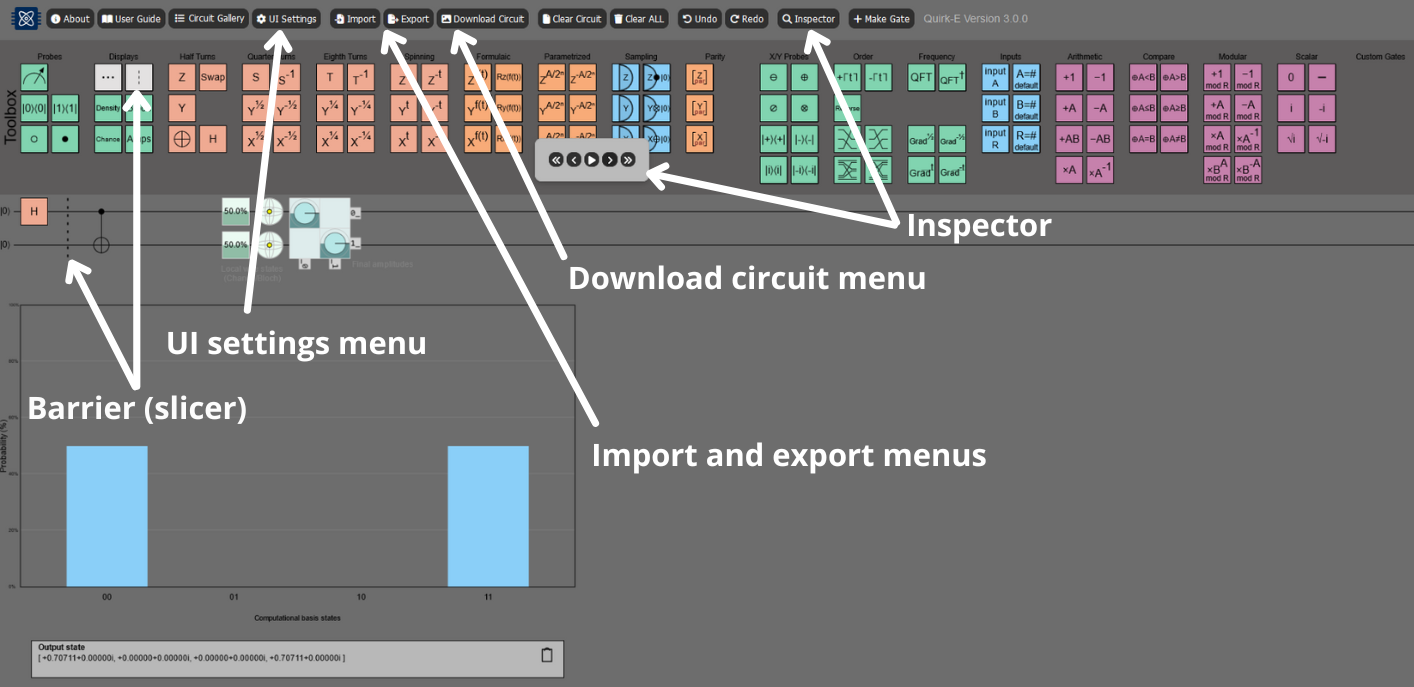
Slicer gate is added in order to make the circuit editing visually better. With slicer gate, circuit can be divided into steps or parts, making the circuit more readable.
Import
Q-Sim supports importing quantum circuits from its native JSON format as well as from the following formats:
- OpenQASM 2.0
- Quil 2.0
- Qiskit Qobj
- IONQ
To import a circuit click on the import button in the menu bar and select a format using the dropdown.
Export
Apart from exporting the internal JSON representation of all circuits, Q-Sim supports exporting limited set of quantum circuits to many other popular formats.
Currently circuits with columns containing the following gates can be exported:
- Half-turn gates without controls or with one control
- Quarter-turn gates without controls or with one control
- Eight-turn gates without controls or with one control
- The uncontrolled swap gate
- The Toffoli (CCNOT) gate
Both importing and exporting are handled by an internal processing library.
Download circuit
Download circuit -button opens a pop up menu, where user can choose the format in which a picture of the circuit area is downloaded on the user's device. Currently, supported formats are png, jpg, svg, webp, and pdf.
Inspector
Inspector allows user to go through a circuit step by step by using singular arrows, skipping to first or last step using double arrows or watching the steps move using the play/pause button. This controller opens up when clicking the Inspector button in the menu bar.
Q-Sim Menu & Circuit Gallery
Q-Sim has individual menus for its settings and a circuit gallery. From the menu, you have access to all important information and links. From the circuit gallery, you can choose to view and modify a ready-made circuit.
Simulator Interface
The following images highlight key features of the Q-Sim user interface.